
Getting Started
The Chat Interface
A dockable Unity Editor panel where you talk to the AI.
Summary
The Adjoint chat window docks anywhere in the Unity Editor. You type a prompt, choose a mode (Agent, Plan, or Ask), and review changes before they apply.
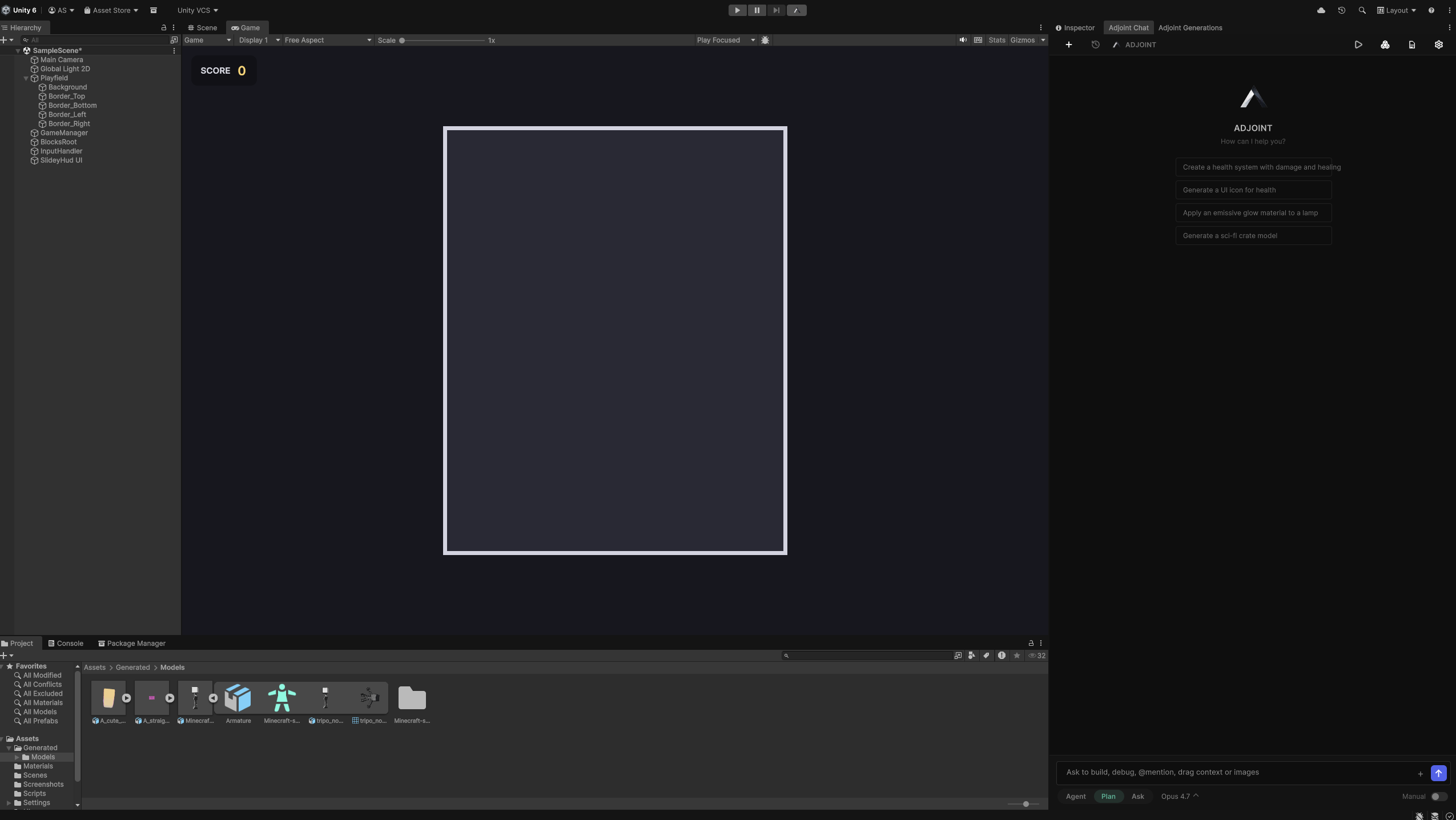
Two Tabs
- Adjoint Chat. The main conversation panel.
- Adjoint Generations. Queue of 3D model and audio generations running in the background.
Top Bar
- New Chat. Start a fresh conversation.
- History. Jump back into any prior conversation in the project.
- Project Rules. Describe your code style, architectural conventions, naming rules, or anything the agent should respect. Project Rules persist across every conversation in the project.
- Settings. View your usage, manage your account, and open the Adjoint dashboard.
Modes
Switch modes at the bottom of the chat window:
- Agent. The agent plans, edits files, creates GameObjects, and runs tools until the task is done.
- Plan. The agent writes a step-by-step plan and waits for your approval before touching your project. Use this for larger work where you want to set direction first.
- Ask. The agent answers questions and explains code without modifying anything.
Input and Context
- @mention any file, script, or GameObject to pin it as context for the next message.
- Drag and drop files, folders, or images from the Unity Project panel straight into the input.
- Paste screenshots of a bug, a mockup, or a texture you want reproduced.
Model Selector
Pick the model for the next message from the dropdown at the bottom right. Switch mid-conversation without losing context. Heavier models for complex work, faster models for routine follow-ups.
How to Get the Most Out of It
- Fill out Project Rules once. Set your naming conventions, preferred patterns (ScriptableObjects vs MonoBehaviour singletons, for example), and anything non-obvious about your project. Everything after that gets easier.
- Use Plan mode for anything multi-file. It's faster to tweak a plan than to undo a wrong implementation.
- @mention aggressively. Point the agent at the specific files, prefabs, or GameObjects it should work with rather than letting it guess.
- Drag images in. For UI work, a screenshot of the look you want beats a paragraph of description.
For the approval flow that runs before any change lands in your project, see Safety and Approval.